Let Kaiya manage an assignment
Give Kaiya the work you need to complete, from the first client briefing to the final report. Use the same conversation as the assignment develops.
You can combine related work in one request:
Set up the Acme Software CFO assignment in Invenias from the attached engagement letter and briefing notes. Draft the client brief and build a target-company list for the search. Use the client requirements and off-limits list we agreed.
Kaiya works out the order of the work, including finding the client company before creating the assignment. Add decisions from other calls and correct any assumptions that would change the search.
Kaiya prepares a plan before changing Invenias. You review the matches and changes, then approve or revise the plan. Research and drafting do not need this approval.
Your firm must connect Kaiya to Invenias and enable updates to save these changes. If updates are unavailable, contact hello@kaiya.ai.
Without an Invenias connection, ask Kaiya to work from your files and prepare a table of changes for manual entry.
From briefing to reporting
| Part of the assignment | Ask Kaiya to |
|---|---|
| Add the assignment | Record the client, contacts, team, dates and assignment details |
| Create the assignment brief | Turn client decisions and research into a brief |
| Add target companies | Research the market and build the assignment's target list |
| Add candidates | Create or update person records and add people to the longlist |
| Log meetings and notes | Record client and candidate discussions against the relevant records |
| Produce reports and analysis | Compare candidates, review target companies and prepare client reports |
Add the assignment
Give Kaiya the engagement letter, briefing notes or other agreed details. Kaiya can add the assignment and related records in the same update plan.
Create the Acme Software CFO assignment in Invenias from these documents. Include the client company, London office, client contacts and our delivery team. Use the agreed engagement type, forecast date, assignment value and milestones from the engagement letter. Include the role requirements from the briefing.
Kaiya can record:
- The assignment name, client company and company location.
- Client contacts and members of your team.
- Internal and external references, status, engagement type and employment type.
- Internal and external brief text, comments and categories.
- Forecast date, weighting, assignment value and currency.
- New milestones, including their dates and initial billing details.
Kaiya checks for existing records and shows possible matches for your review. Check the client, assignment, contacts and figures before approval.
An assignment location must belong to the client company. If the office is missing, ask Kaiya to add the company location and use it for the assignment.
Kaiya can add and remove milestones. To change an existing milestone, edit it in Invenias. Manage invoices and billing events in Invenias too.
See supported assignment updates and Review and approve updates.
Create the assignment brief
Ask for the document you want the client to review. Kaiya can combine the briefing, company research and decisions in the conversation.
Draft the Acme Software CFO brief for the client. Use our briefing notes and research on the business. Cover the acquisition plans, reporting line, first-year priorities and candidate requirements. Use our assignment-brief template. List any decisions we still need from the client in your reply.
Add the client's meaning of terms that affect the search:
The client will consider a first-time Group CFO. They must have led finance through acquisitions in a PE-backed SaaS business. A Divisional CFO or VP Finance could fit. The CFO must attend the London office three days a week.
Check that the brief reflects the client's decisions. After agreement, ask Kaiya to save the client version as the assignment's external brief. Keep your team's search notes in the internal brief.
Kaiya can save the brief text in Invenias. To store the Word file on the assignment, attach the file in Invenias yourself.
See Create a Word document and Use your firm's template.
Add target companies
Kaiya can research the company market, check your firm's records and add target companies to the assignment.
Build the target-company list for the Acme Software CFO search. Find SaaS businesses whose finance leaders could meet the brief. Check PE ownership and acquisition history. Add suitable companies as targets on the assignment, with notes on their relevance. Exclude the companies on our off-limits list.
Kaiya can search leading professional networking sites, Invenias and other online sources. You do not need to supply a list of companies first.
Review the market map and supporting evidence. Check company matches and target-list entries in the update plan. Kaiya can add missing company records and link those companies to the assignment.
As research continues, ask Kaiya to update target-company stages, progress notes and internal comments. Use the stage names your firm uses in Invenias.
See Create target-company lists and assignment list updates.
Add candidates
Kaiya can find candidates, create or update their person records, and add them to the assignment. CVs, profile links and interview notes can supply the facts.
Add the candidates we selected from this longlist to the Acme Software CFO assignment at our Research stage. Use their CVs and the research here to update their career history and education. Keep existing contact details unless the candidate has supplied a correction.
Kaiya checks for existing people before proposing new records. Review each match, the proposed facts and the assignment stage.
Adding a person to the assignment creates a candidate-list entry. Removing that entry leaves the person record in Invenias.
Kaiya can read a CV to update the person record. Attach the original CV in Invenias yourself if you want to store the file there. Enter remuneration details in Invenias; Kaiya cannot update those fields.
See Create a candidate longlist, supported person updates and candidate-list updates.
Log meetings and notes
Give Kaiya a recording, transcript or notes from a client meeting or candidate interview. Ask Kaiya to prepare the summary and save the relevant notes.
Write up this Acme Software client meeting and log the notes against the assignment and client company in Invenias. Keep the agreed decisions, actions, owners and dates. Draft a follow-up email with the questions still open.
Record this call with Jordan Lee against Jordan and the Acme Software CFO assignment. Save my fit-to-profile notes on Jordan's candidate entry. Move Jordan to our Shortlist stage, as agreed in the notes.
Kaiya can save a Note or Telephone journal entry and link the same entry to the relevant records. Kaiya can also update candidate progress, fit-to-profile and internal notes.
Check speaker names, dates, decisions and the records Kaiya proposes to link. A suggested date should remain a suggestion until someone agrees it.
Logging meeting notes does not schedule a meeting. Use your calendar or Invenias to arrange interviews and invitations. Enter formal assessment scores and feedback in Invenias; candidate notes do not replace those records.
See Work with recordings and transcripts and journal updates.
Produce reports and analysis
Ask Kaiya to use the assignment records to answer the question you need for your next meeting.
Review the Acme Software CFO assignment in Invenias before Friday's client call. Show candidates at each current stage in a table and chart. Compare our target companies with the brief and identify gaps in our coverage. List candidates waiting for client feedback and the decisions we need to keep the search moving.
Kaiya can compare candidate evidence, count records at each stage and analyse target-company coverage. Open Results for the full table, chart or person profile.
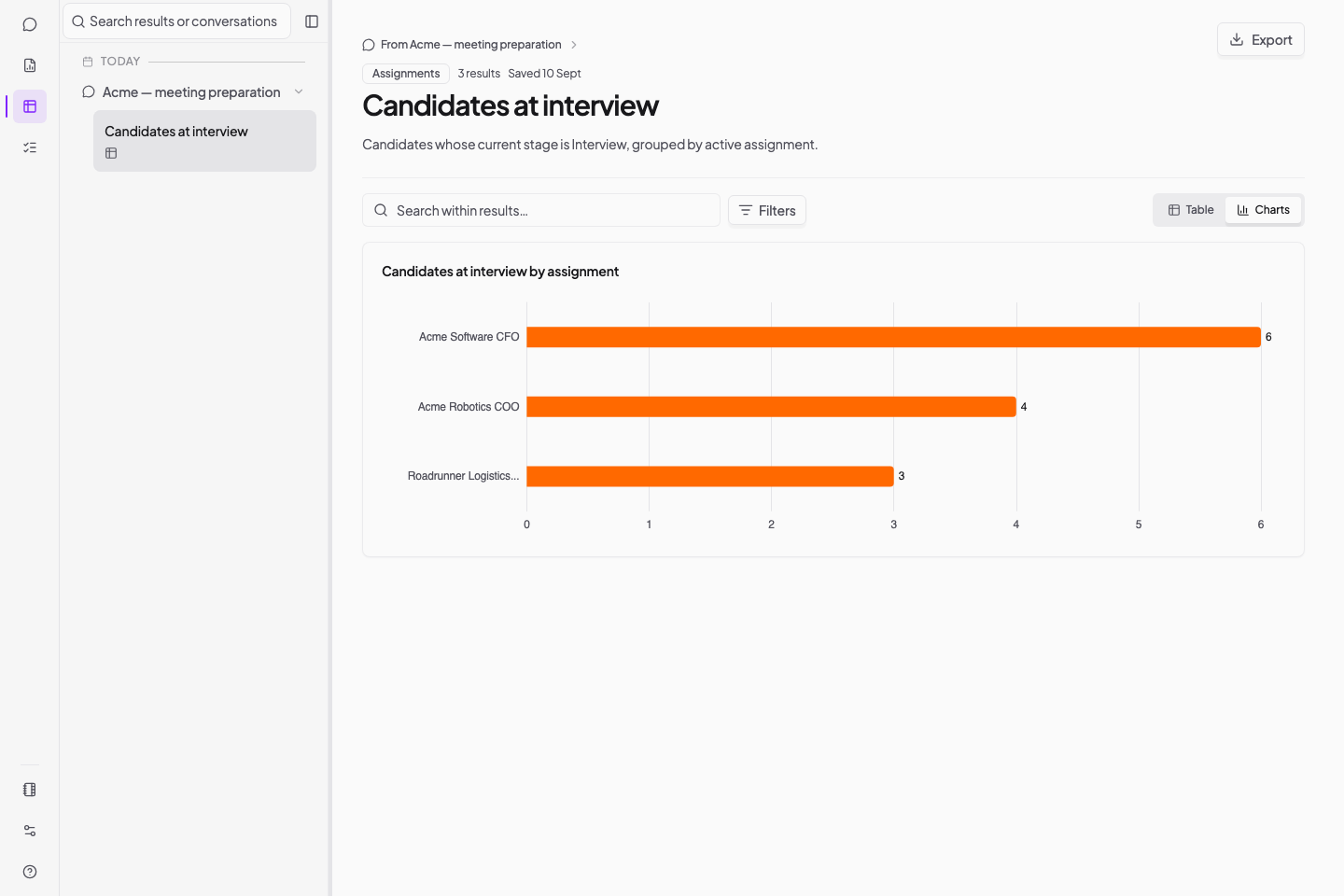
Check which records Kaiya counted and how Kaiya handled missing stages. Current stages show today's position; they do not prove how many interviews took place last month.
For interviews completed last month, ask Kaiya to use dated journal entries and interview notes. Check that Kaiya excludes scheduled or cancelled interviews. Supply missing notes or an export if needed.
To prepare client documents:
- Ask Kaiya for candidate reports using the CVs, interviews and evidence against the brief.
- Open Reports to create a branded assignment report from one of your firm's templates. Choose a standard setup or change the options.
You can save report setups and share them with colleagues. If you cannot see Reports, contact hello@kaiya.ai.
Check completed Invenias updates before generating a report. Editing the Word document does not update the source records; ask Kaiya to correct those records too.
See Search and analyse Invenias, Work with results, Create candidate reports and Create assignment reports.
Complete the assignment and keep in touch
Ask Kaiya to update the agreed completion statuses and record the new role. Keep other candidates in a programme for future searches.
Jordan has started as CFO at Acme Software. Update Jordan's career history with the dates in these notes and make the new role primary. Set the candidate and assignment to our agreed completion stages. Add the remaining shortlist to our Finance Leaders programme with the objectives we discussed.
Kaiya can update employment, statuses and programme membership. Create the formal Offer or Placement record in Invenias, and complete remuneration and billing there.
See programme updates and assignment actions.
Correct or remove information
Tell Kaiya which record needs correction and what should change. Specify whether you want to remove a list entry or delete the record itself.
Kaiya supports deletion of people, companies, assignments and programmes after your request and approval. Check the record and deletion warning before approval. Kaiya cannot guarantee recovery of a deleted record.
To remove someone from an assignment while keeping the person record, ask Kaiya to remove the candidate-list entry.
Kaiya does not support record merging. For duplicate people or companies, follow Invenias's guide to merging records. For other duplicate records, ask the Kaiya team at hello@kaiya.ai to help you check the options.
See Supported Invenias updates for individual actions and Review and approve updates for the approval process.